Six small, worked datasets for learning how to reconcile spreadsheets. Each set includes the source files, the columns to select and the result to expect. No customer or financial records are used.
Unzip the files, choose a reference and its comparison file(s), then select the matching and comparison columns shown below. Values use the default raw comparison rules. The inventory example also has a direct trial button.
Compare Excel sheets by ID, even when rows move
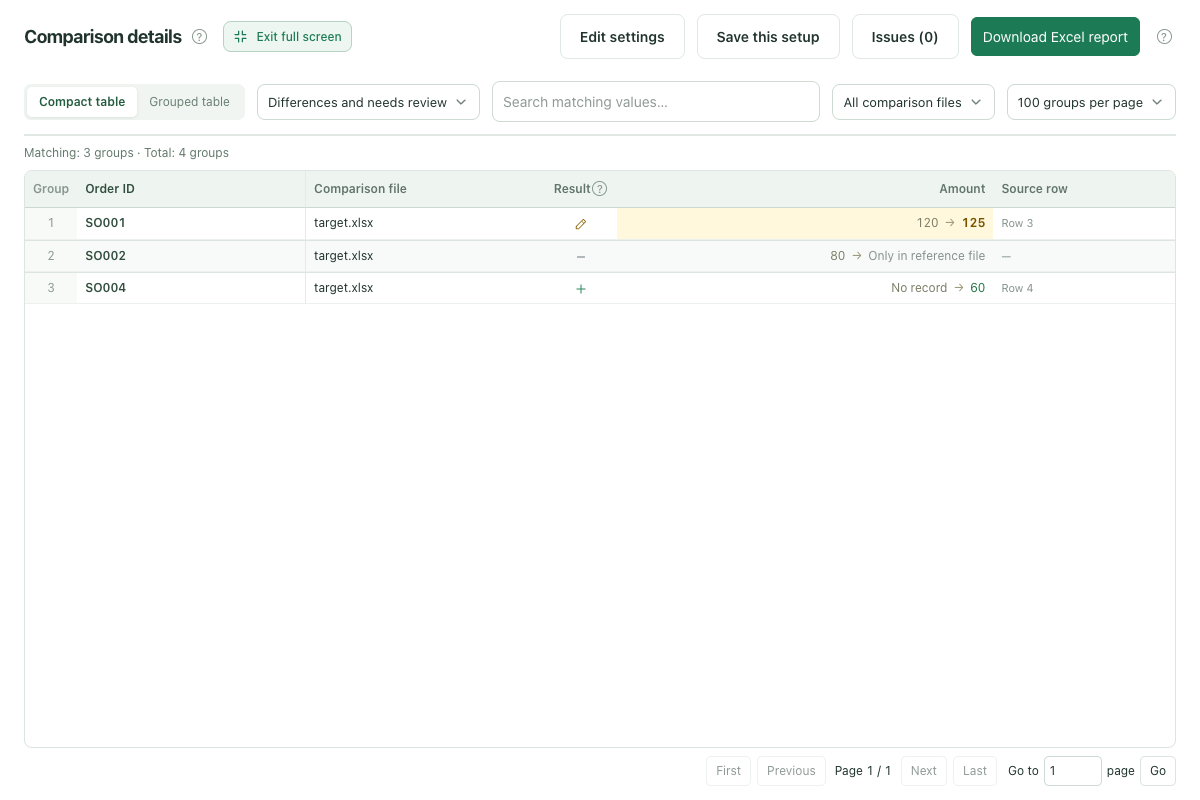
An updated order export may put the same orders on different rows. Match them by Order ID before checking Amount, so a change in sorting does not become a false difference. In these fictional files, the older export is the reference and the newer one is the comparison file. You will find one changed amount and orders present in only one file. All amounts are in USD; use a consistent currency because RowKite does not convert currencies.
This order appears in the reference file, but not in the comparison file.
target
SO003
Same
Amount is still 50. Its new row position does not affect the result.
target
SO004
Only in comparison file
This order appears in the comparison file, but not in the reference file.
If an order has multiple line items, add a line item ID or SKU to the matching columns. Order ID alone cannot identify a unique row.
In Raw values mode, text "001" differs from the number 1. RowKite cannot restore leading zeros or digits already lost in Excel.
Added and missing records depend on the reference: SO004 appears only in the newer file, while SO002 appears only in the older file. Swap the files and those statuses reverse. Changed values are also read relative to the selected reference.
Use standard .xlsx or Excel 97–2003 .xls tables. Formulas are read from their saved results; RowKite does not recalculate them.
Actual RowKite result using these sample files. Open the image for the full workspace.
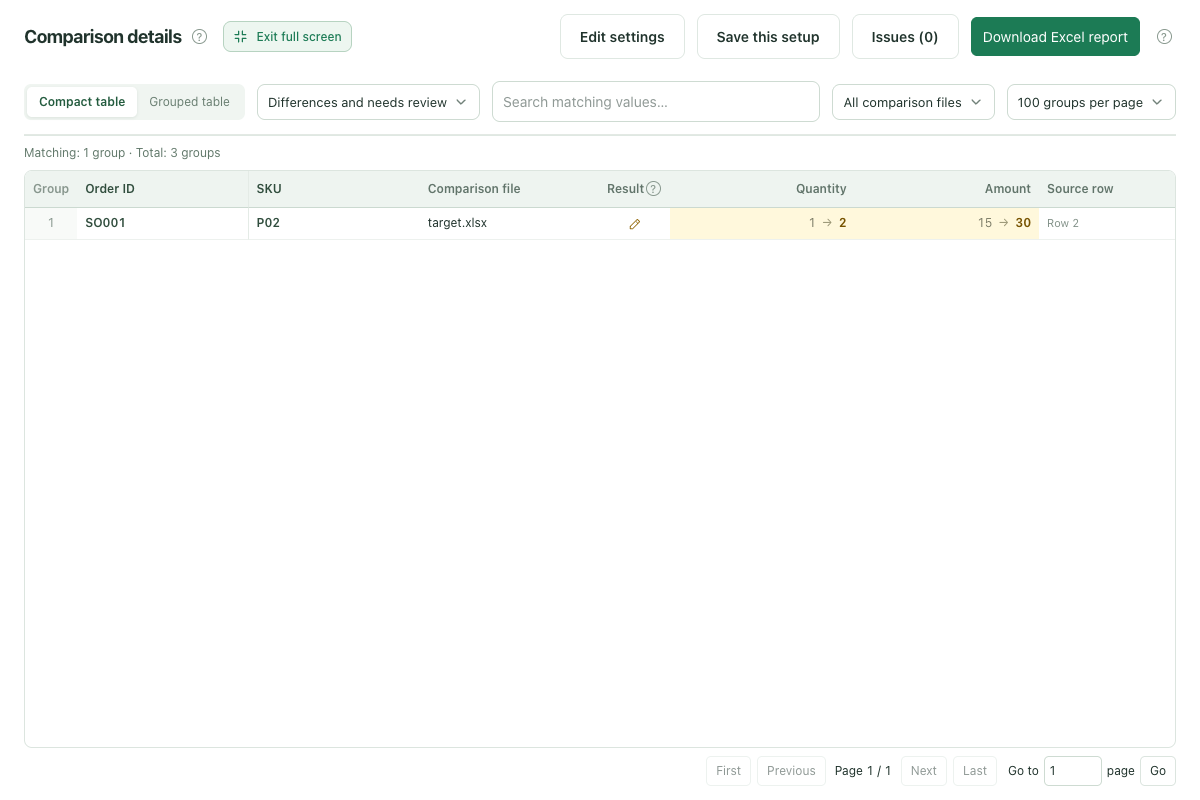
An order with two products can appear on two rows with the same Order ID. To match each line item, you also need its SKU. In this fictional example, Order ID and SKU together identify each item, even when the rows move. You can then check Quantity and Amount for that item. All amounts are in USD; keep the same currency in your own files because RowKite does not convert currencies.
Quantity is 2 and Amount is 20. A different row position does not affect matching.
target
SO001 + P02
Changed
Quantity changed from 1 to 2; Amount changed from 15 to 30.
target
SO002 + P01
Same
Quantity is 3 and Amount is 30.
This combination is unique in the example. Check the level of detail in your own files before choosing the same columns.
An order and SKU can still repeat when items ship in batches, have split deliveries, or contain duplicate rows. Add a stable line item ID as a third matching column, or prepare both exports at a consistent level of detail. RowKite does not combine quantities or amounts automatically.
A column cannot be used for both matching and comparison. To check whether a value changed, match records using other stable columns.
Blank or duplicate matching values need review. Update the matching columns and check again before interpreting the differences.
Actual RowKite result using these sample files. Open the image for the full workspace.
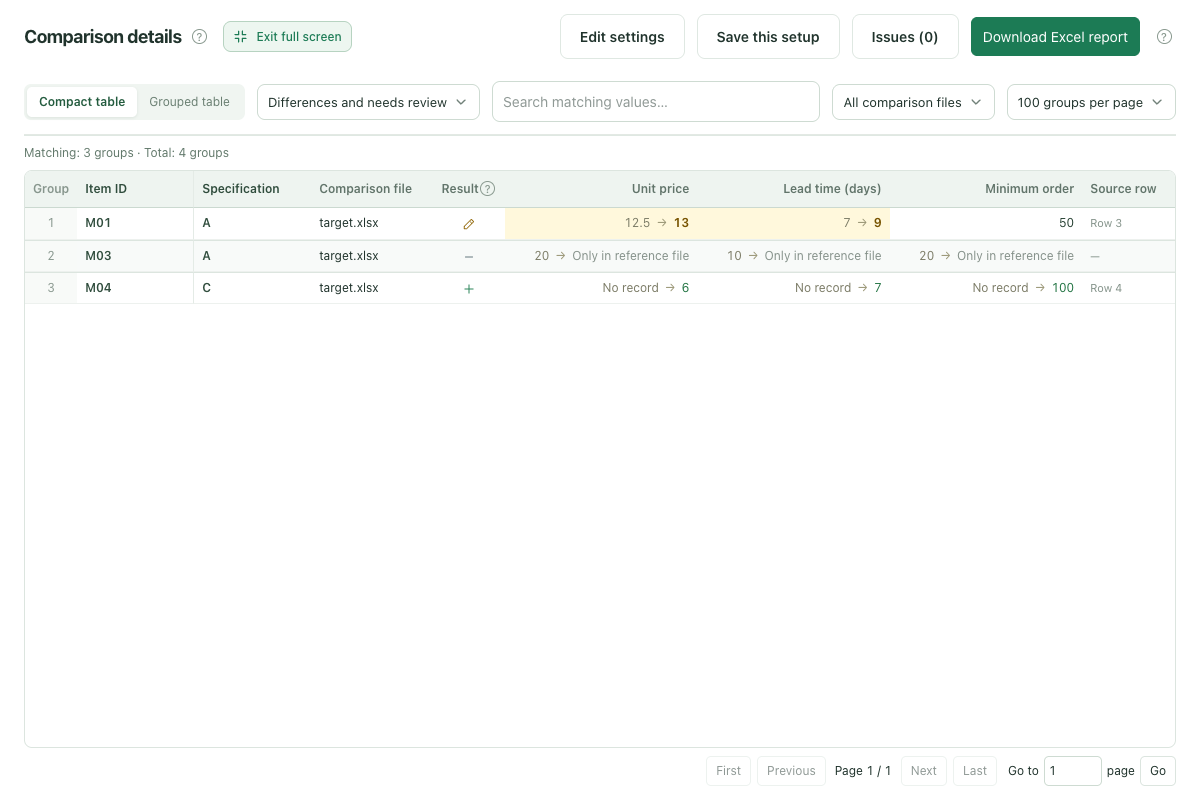
A new supplier quote can change the lead time or minimum order as well as the price. Match the same item and specification across both files, then check each of those values. This fictional example uses one supplier and USD prices per unit, excluding sales tax. Before using your own quotes, check that their currency, units, and tax basis agree.
Unit price: 12.5 to 13; lead time: 7 to 9 days; minimum order is still 50.
target
M02 + B
Same
Unit price is 8, lead time is 5 days, and minimum order is 100.
target
M03 + A
Only in reference file
This quote appears in the reference file, but not in the updated quote.
target
M04 + C
Only in comparison file
The updated quote includes item M04 with specification C.
A quote missing from the update means it is absent from this file; it does not prove the supplier discontinued the item. Check the validity period, quote scope, and any separate attachments. An added quote is new relative to the selected reference.
For multiple suppliers, you can add Supplier ID as a third matching column. Tiered pricing also depends on the quantity range; both files must use the same level of detail.
Only saved cell values are compared. If a formula has no saved result, calculate and save the workbook in Excel first.
Comparison files stay on your device and are not modified. Leaving the workspace clears the current files and results, so download your report first.
Actual RowKite result using these sample files. Open the image for the full workspace.
Compare multiple Excel files against one reference
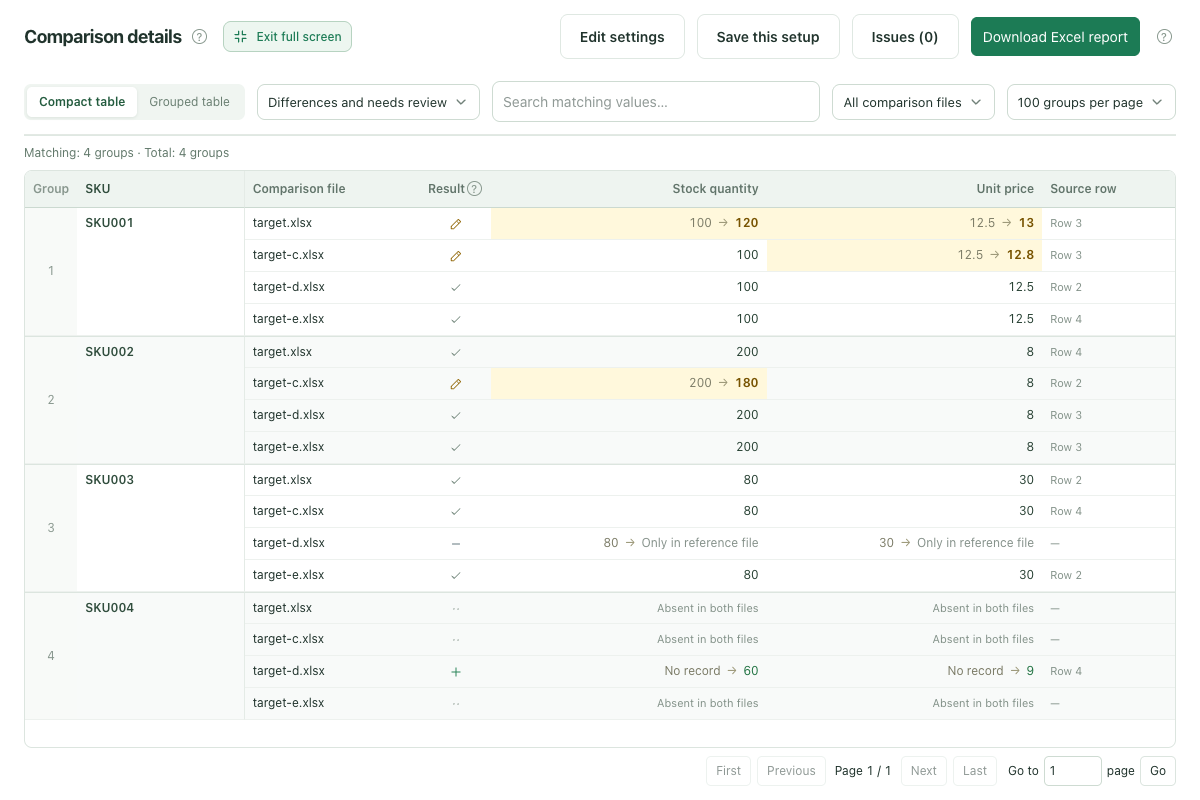
Check several versions of a product list against one approved copy. This five-file example uses A as the reference for B, C, D, and E. Match by SKU to check stock quantities and unit prices, even when rows move. Each comparison keeps its own results, so you can see which file changed each product. All sample data is fictional.
Against A: stock quantity 100 to 120; unit price 12.5 to 13.
target
SKU002
B: Same
Stock quantity 200 and unit price 8 match A.
target
SKU003
B: Same
Stock quantity 80 and unit price 30 match A despite the new row position.
target-c
SKU001
C: Changed
Against A: unit price 12.5 to 12.8; stock quantity stays at 100.
target-c
SKU002
C: Changed
Against A: stock quantity 200 to 180; unit price stays at 8.
target-c
SKU003
C: Same
Stock quantity 80 and unit price 30 match A.
target-d
SKU001
D: Same
Stock quantity 100 and unit price 12.5 match A.
target-d
SKU002
D: Same
Stock quantity 200 and unit price 8 match A.
target-d
SKU003
D: Only in reference
SKU003 exists in A but has no row in D.
target-d
SKU004
D: Only in comparison file
D has SKU004 with stock quantity 60 and unit price 9; A has no such row.
target-e
SKU001
E: Same
Stock quantity 100 and unit price 12.5 match A.
target-e
SKU002
E: Same
Stock quantity 200 and unit price 8 match A.
target-e
SKU003
E: Same
Stock quantity 80 and unit price 30 match A.
Choose the reference direction before comparing. Added, missing, and changed labels are always relative to that file.
For your own files, check that the matching columns identify one record. If a SKU repeats by warehouse or another detail, include that column in the key and review repeated matching values in the issues list.
Use the same business scope, stock units, currency, and tax basis across files. Standard .xlsx and .xls formulas are read from their saved results.
Download the complete report before leaving the workspace. Comparison files and results stay in the current browser task.
Actual RowKite result using these sample files. Open the image for the full workspace.
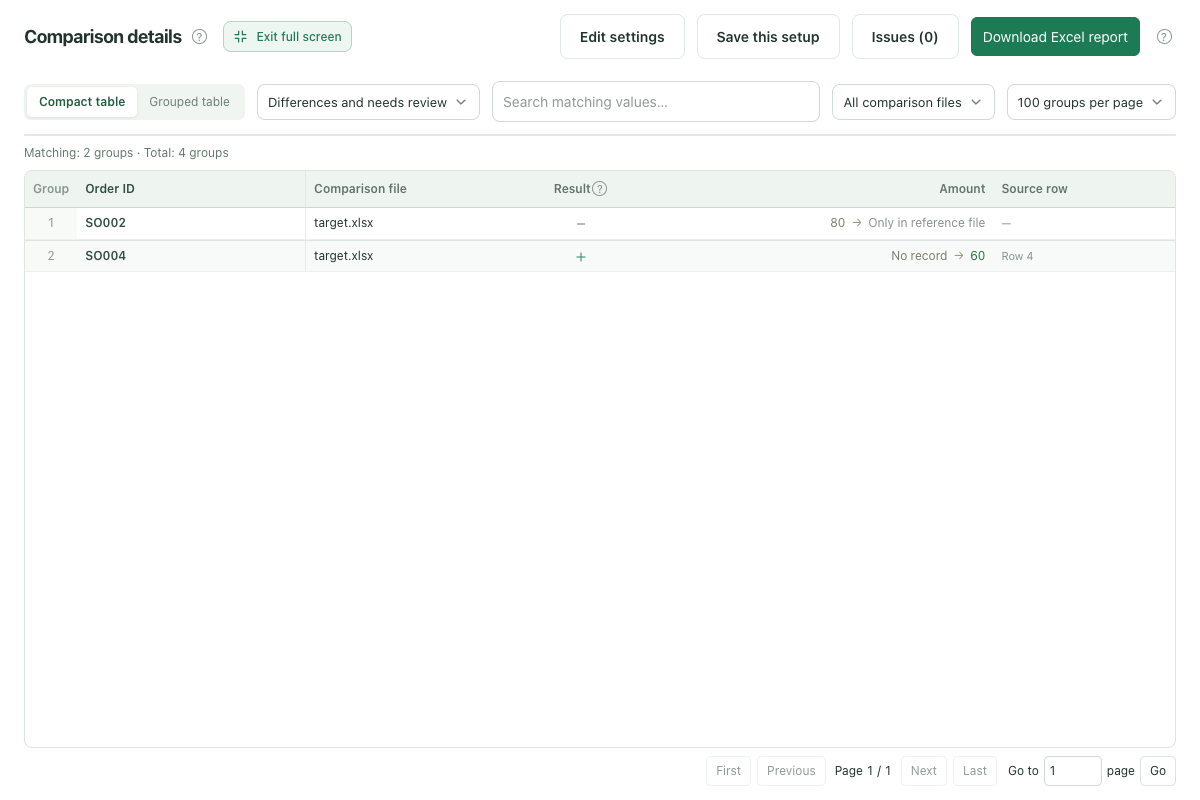
The order list has been updated, and you need to see which orders were added or left out. Use the older export as the reference and match the newer one by Order ID. These fictional files contain two unchanged orders, one found only in the newer file, and one found only in the reference. A different row order does not affect the match, and added or missing orders are kept separate from changed amounts.
The older reference contains this order; the newer file does not.
target
SO003
Same
Amount is 50 in both files. Its new row position does not affect matching.
target
SO004
Only in comparison file
The newer file contains this order with Amount 60; the reference does not.
Added and missing depend on which file is the reference. Swap the files and SO002 becomes added while SO004 becomes missing. The two unchanged orders still match.
A missing row means the comparison file has no matching ID. It does not establish that the order was deleted. Check export filters, scope, and ID formatting in the source.
If an order spans multiple line items, match by Order ID plus SKU or another stable line item identifier. Resolve blank or duplicate keys before treating rows as confirmed additions or omissions.
Preserve leading zeros by saving IDs as text. RowKite cannot restore lost ID values and does not merge, delete, or create orders.
Actual RowKite result using these sample files. Open the image for the full workspace.
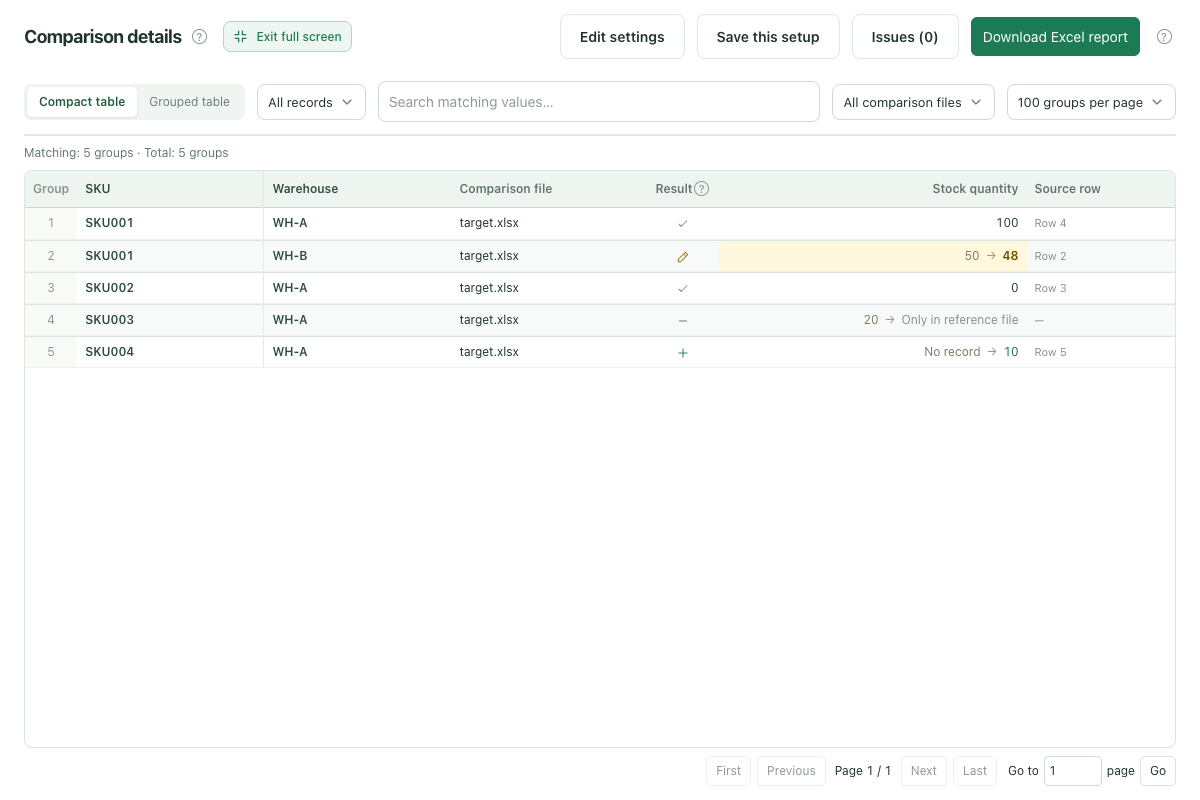
Match the book inventory and physical count by SKU and warehouse, then compare quantities. These fictional Excel files show changed counts, zero stock, and records found in only one file.
For the same product in warehouse B, book quantity 50 changes to count quantity 48.
target
SKU002 + WH-A
Same
Both quantities are numeric zero. A zero-stock row is still a record.
target
SKU003 + WH-A
Only in reference file
The book record has quantity 20; the count has no matching row. An absent row is not a count of zero.
target
SKU004 + WH-A
Only in comparison file
The count has quantity 10 for this product-location pair; the book inventory has no matching row.
Zero, a blank quantity cell, and an absent row have different meanings. Keep the zero-stock SKU002 record. Check whether SKU003 was omitted from the count, and investigate blank quantities in the source.
If batches or bins produce multiple rows for the same SKU and warehouse, align the level of detail first. Repeated keys require review; RowKite does not total stock quantities automatically.
The reference direction determines added and missing rows. Swap book inventory and count files and those statuses reverse; quantity changes are then read from the new reference.
Inventory reconciliation needs the same cutoff time, units, and code definitions. Results describe differences in saved cell values. They do not establish the cause of a stock variance, adjust inventory, or post accounting entries.
Actual RowKite result using these sample files. Open the image for the full workspace.
The fictional worksheet data in these six sample sets is licensed by RowKite under Creative Commons Attribution 4.0 International (CC BY 4.0). You may share and adapt it, including commercially, with appropriate credit, a license link and an indication of changes. This permission covers the sample data; it does not license RowKite software, branding, or third-party material.
Suggested attribution (replace “unmodified” if you change the data):
Excel comparison practice data by RowKite, version 2026-11-13. Source: https://www.rowkite.com/en/examples/ · CC BY 4.0: https://creativecommons.org/licenses/by/4.0/ · Unmodified.
Examples are small and intentionally simplified. They are not a benchmark for large files, formula recalculation or every Excel feature. Repeated matching keys require review; RowKite does not recalculate formulas.